How to use HANGIL
There is almost nothing to set up. Open it, do what the top card says, and come back to Review each day.
What you end up with
HANGIL on your own phone, set to your trade if you have one, with a Korean voice you can hear. It is free, it works with no connection after the first load, and there is no account at any point.
- Steps
- 10
- Cost
- Free
- Account
- None
Before you start
You need the app and a phone that can speak Korean. Nothing else, and nothing to fill in.
- The app. Download it for Android from the HANGIL page, or open it in your browser and add it to your home screen — on Android, Chrome's menu › Add to Home screen. Android warns you about installing a file from outside the store, and asks you to allow installs from the app you downloaded it with, such as Chrome. That is normal for an app shared this way.
- A Korean voice on your phone. If yours does not have one, the app says so on its first screen rather than staying silent.
- Nothing else. No account, no email, and no signal once it has loaded.
Set HANGIL up
Step 1
Open it, and do what the top card says
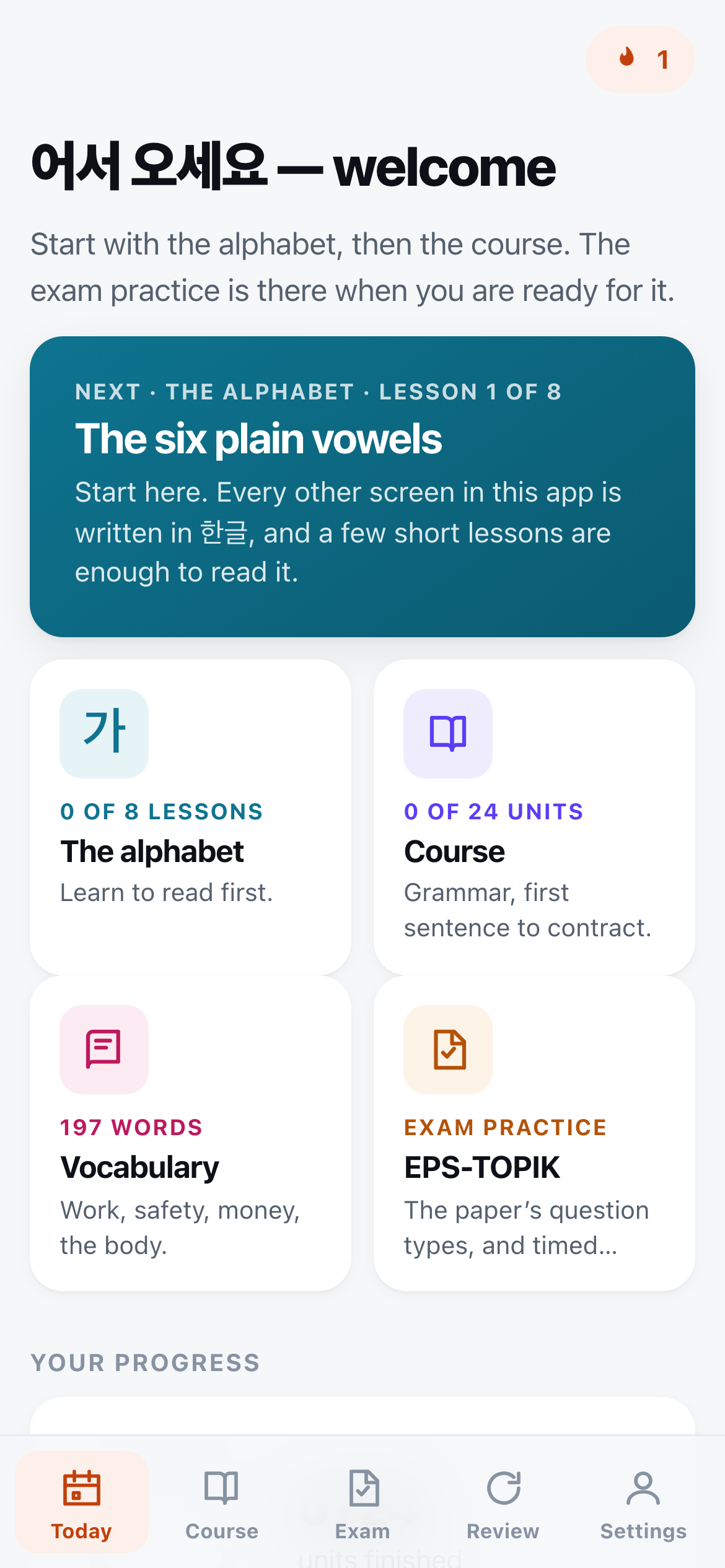
The first screen is Today. The big card at the top always names the next thing to do. The first time you open it, that is lesson 1 of the alphabet. Tap it and start.
Every Korean word and sentence in the app is written in 한글, the Korean alphabet, so the alphabet comes first. If you can already read 한글, go straight to Course — the app says to skip the alphabet lessons if you can already read it.
Step 2
If you are applying for factory work, set your trade
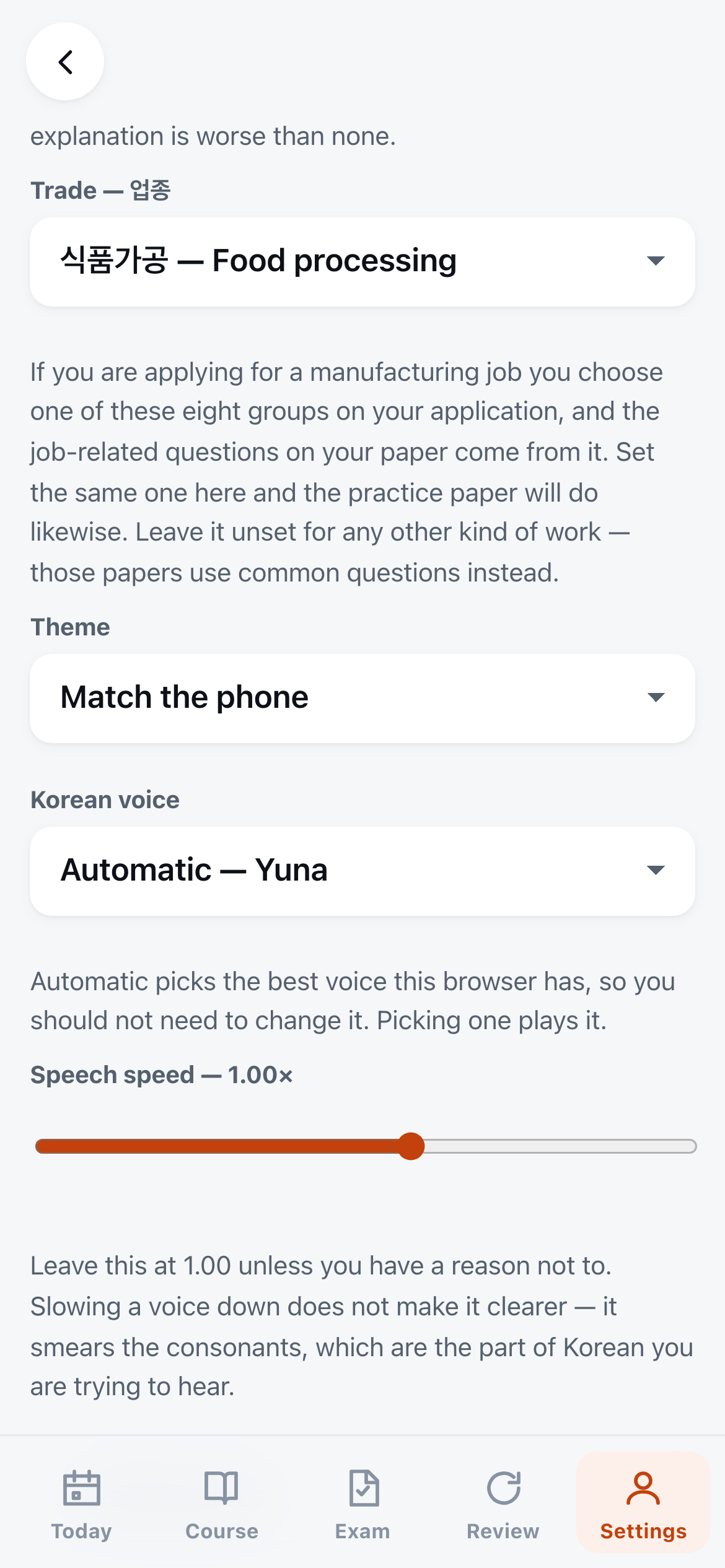
In Settings, under Trade — 업종, choose the job group you picked on your application. There are eight, from 고무·플라스틱 rubber and plastic to 펄프·종이·목재 pulp, paper and wood. The practice papers then put eight questions from your trade in the reading half, as the real paper does.
For agriculture, fishing, construction or service work, leave it on Not chosen. Those papers use common questions only, and the app does not pretend otherwise.
Step 3
Check that you can hear the Korean
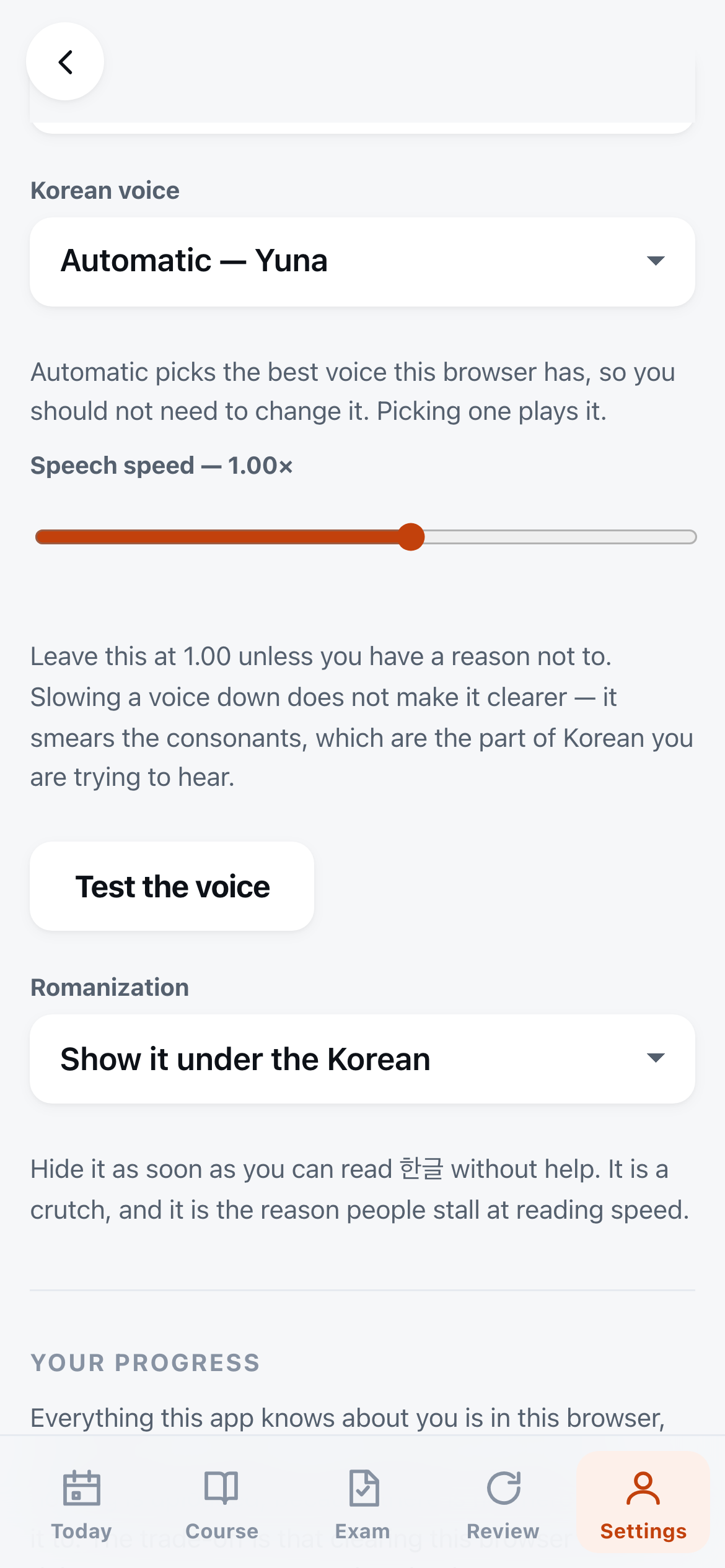
Tap Test the voice. If you hear a Korean sentence, you are set. Every Korean sentence in the app has a play button, and it is your own phone that speaks it, so it works with no signal.
The voice name will be different on your phone — this picture was taken in a browser on a computer. On the Android app, when your phone has more than one speech engine or Korean voice, Settings lets you choose. They do not all sound alike, so it is worth a minute to find one you can listen to. Leave the speed at 1.00.
Once it is set up
A lesson
One card at a time, the Korean first
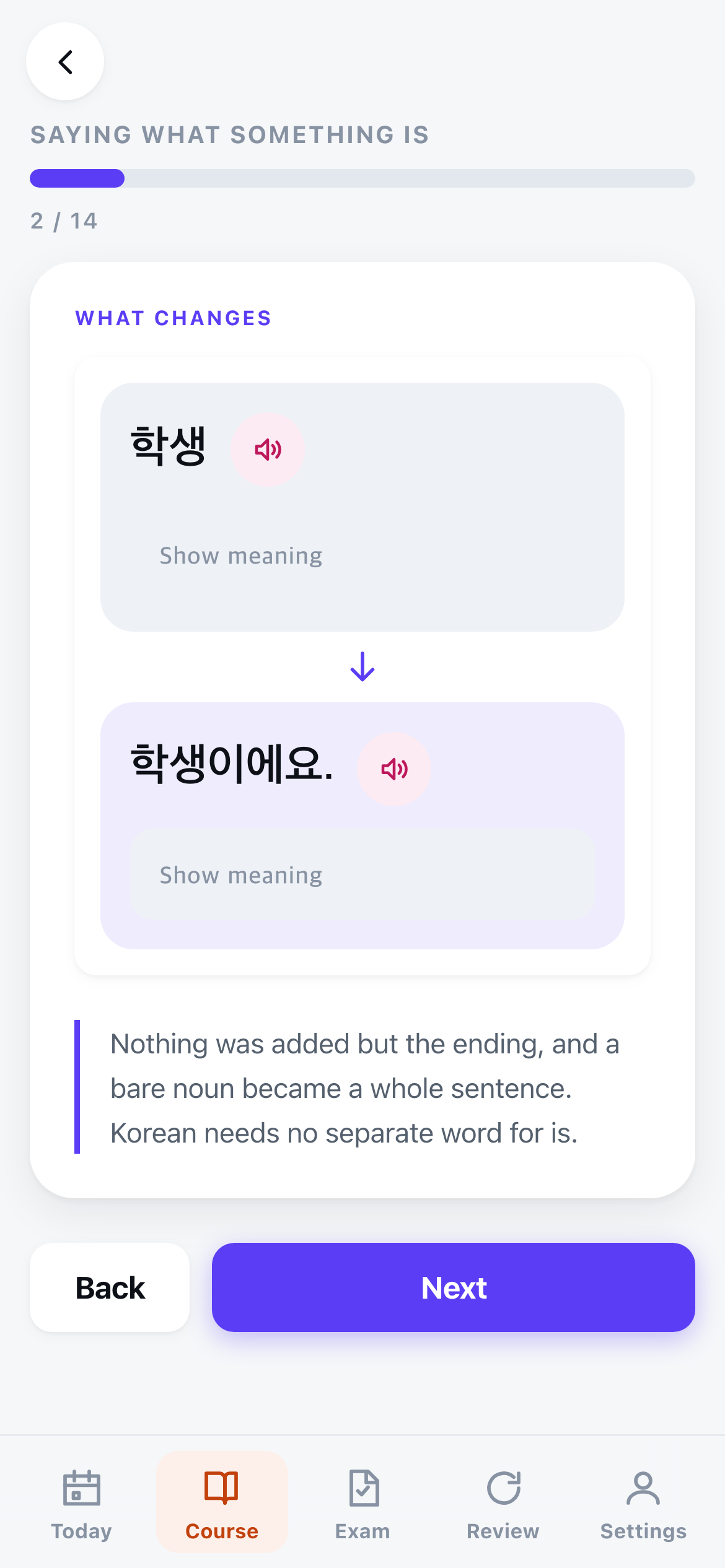
Each unit walks through its grammar one card at a time. Many cards show the same sentence twice with one thing different, like 학생 and 학생이에요, so you can see exactly what changed. Tap the play button to hear it.
The English stays hidden until you tap Show meaning. Try to read the Korean first — that is the part you are here to learn.
Practice
Then practise it
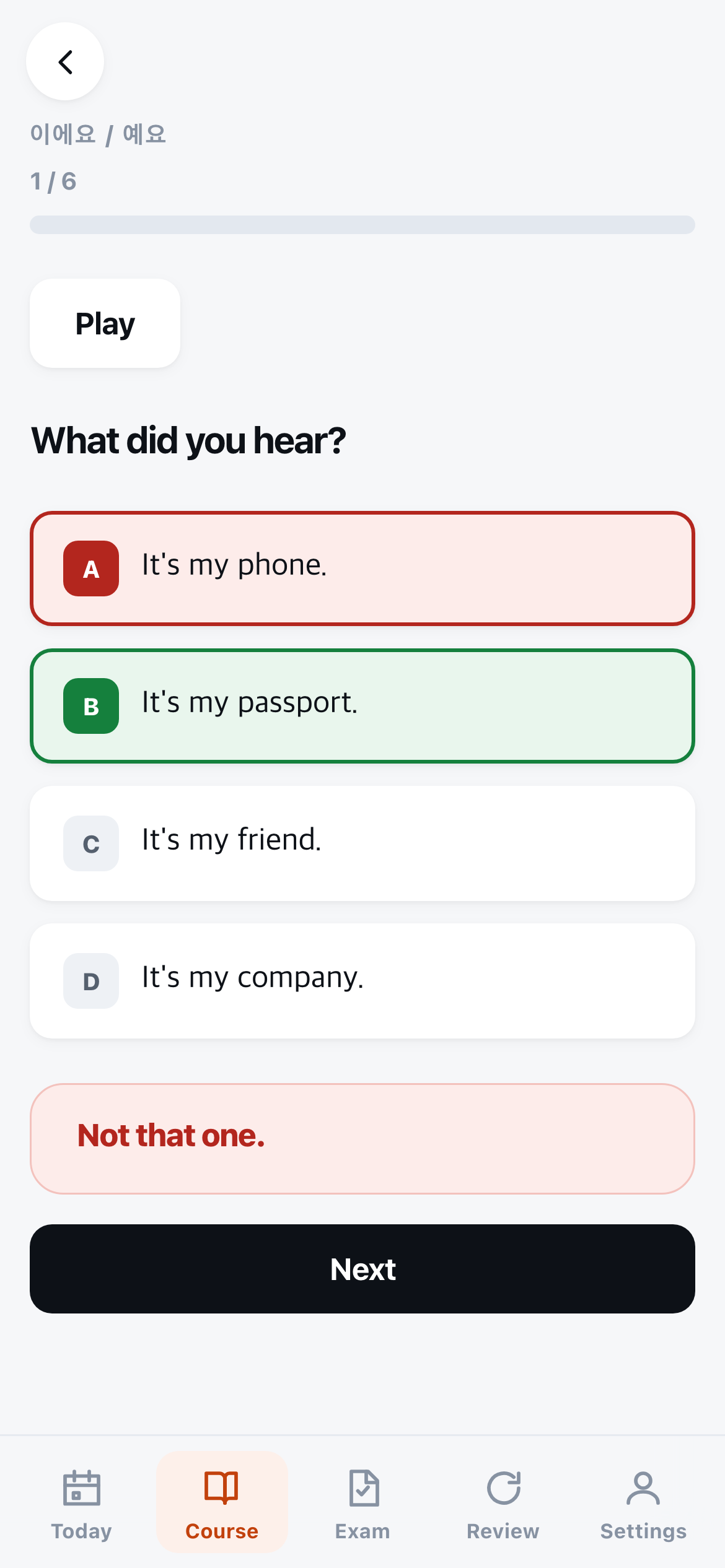
After the cards, the unit gives you questions — choose the meaning, put the words in order, or listen and pick what you heard. Tap Play to hear a listening question.
Get one wrong and it shows you the right answer straight away. It also comes back in Review, starting again from today.
Every day
Come back to Review
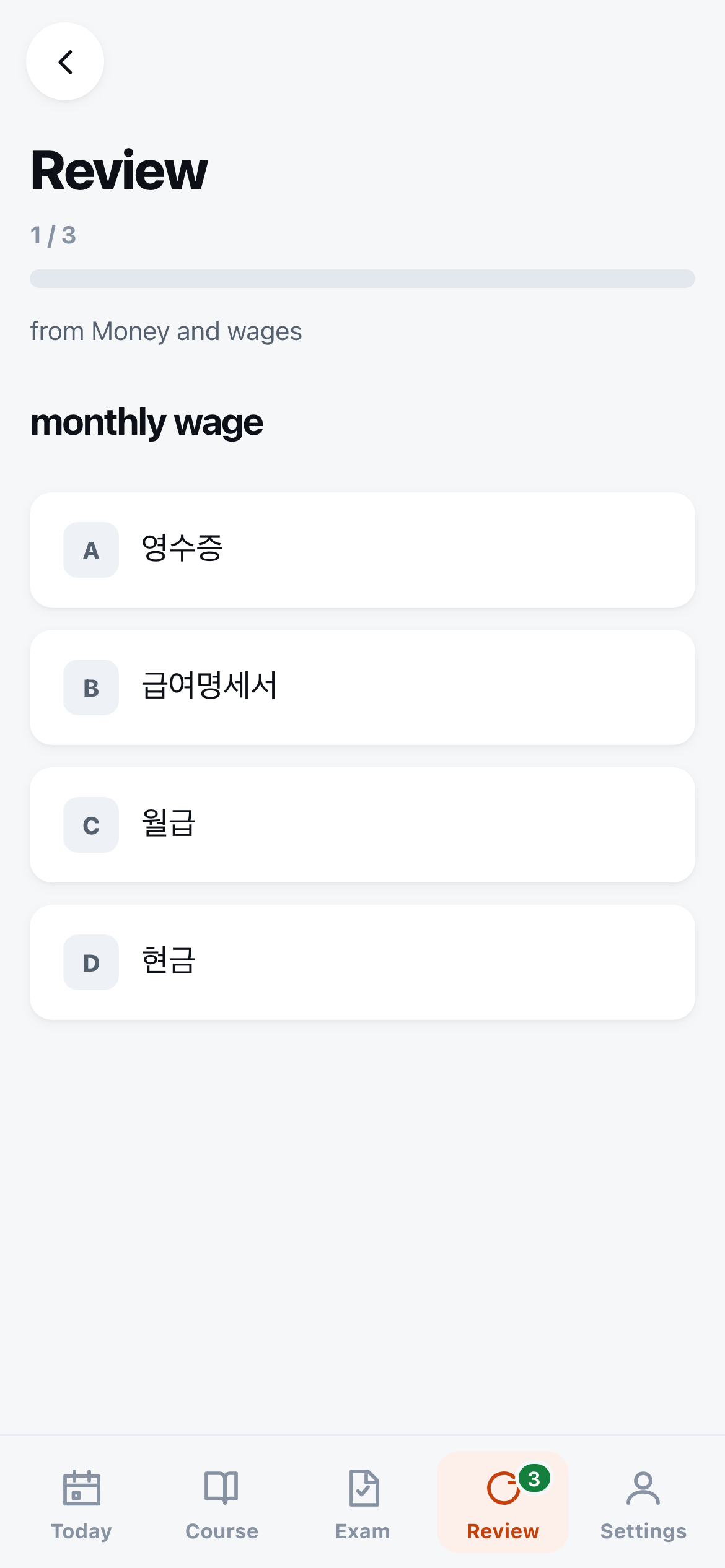
Everything you answer in the alphabet, the course and the vocabulary comes back in Review at a widening gap. When something is due, the Review tab at the bottom shows how many. Clearing them is the few minutes a day that makes the rest stick.
The numbers in this picture and the ones after it — including the 3 on the Review tab — come from sample progress made for the screenshots, not from anyone's study. Exam questions you miss are kept separately, on the EPS-TOPIK screen.
When you have answered a few
See what you keep getting wrong
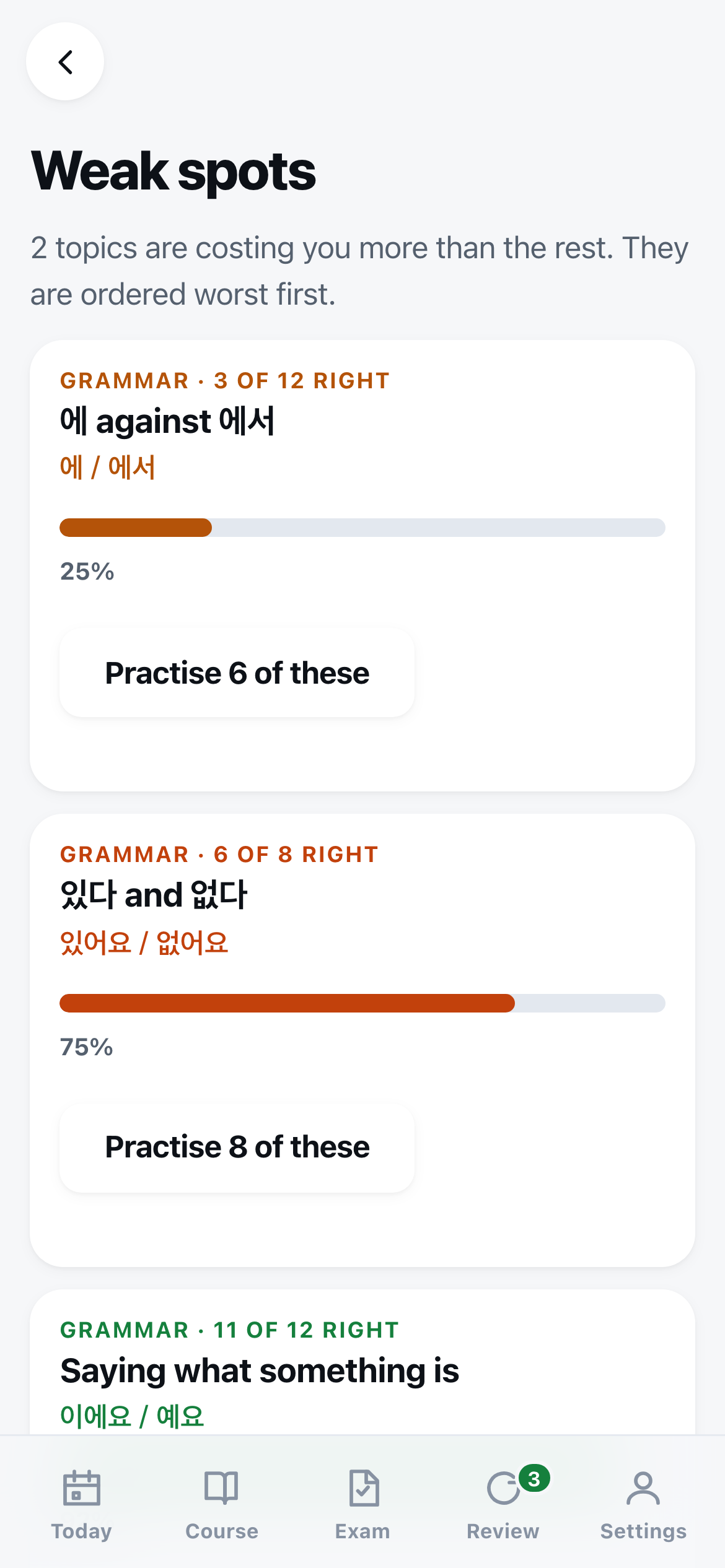
Weak spots lists the topics that cost you the most, worst first — not just how many you got wrong, but what they were about, like 에 against 에서. Tap Practise to get questions on that one thing, pulled from everywhere it turns up.
A topic appears only once it has six answers behind it. Fewer than that is a small sample, not a weak spot. The scores here are sample progress, as above.
The exam
Learn each kind of question
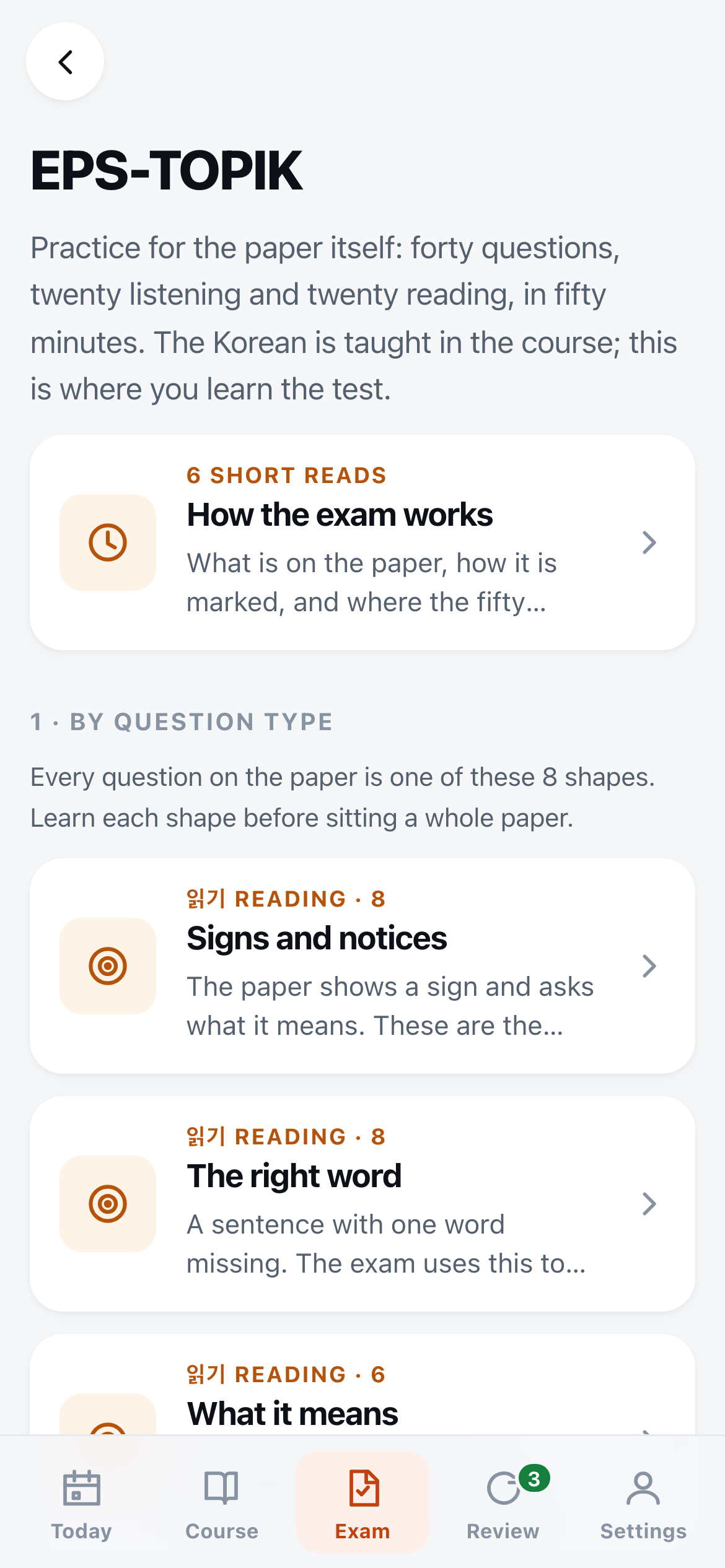
The Exam tab is practice for the paper itself. Start with How the exam works, then go through the question types one at a time — signs and notices, the right word, and the rest — so nothing on the day is a surprise.
When you are ready
Sit a timed paper
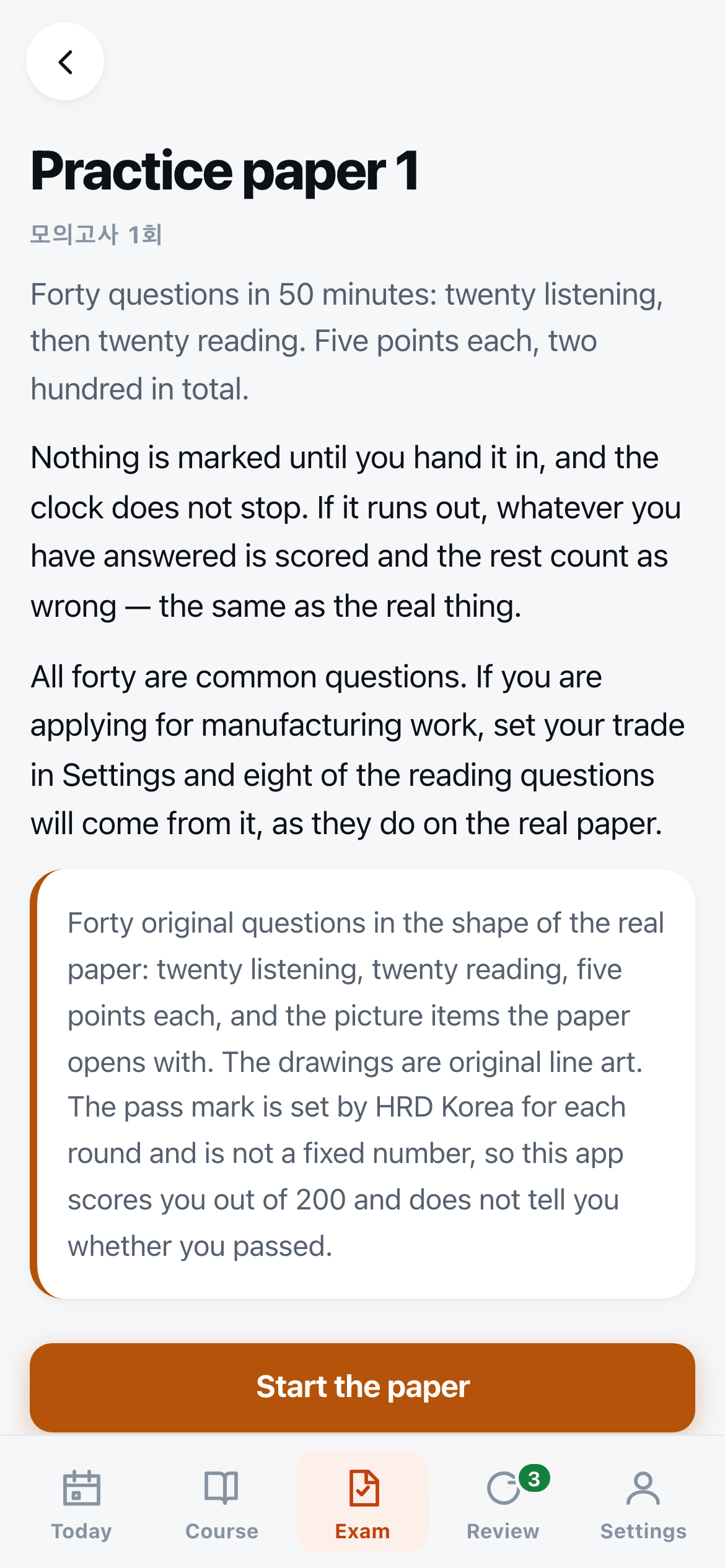
There are two practice papers, forty questions each, fifty minutes, with a clock that does not stop. Nothing is marked until you hand it in, and if the time runs out, what you have answered is scored.
The questions were written for this app in the shape of the real paper. They are not a past paper, and the app cannot tell you whether you will pass — it scores you out of 200 and stops there.
Now and then
Save a backup
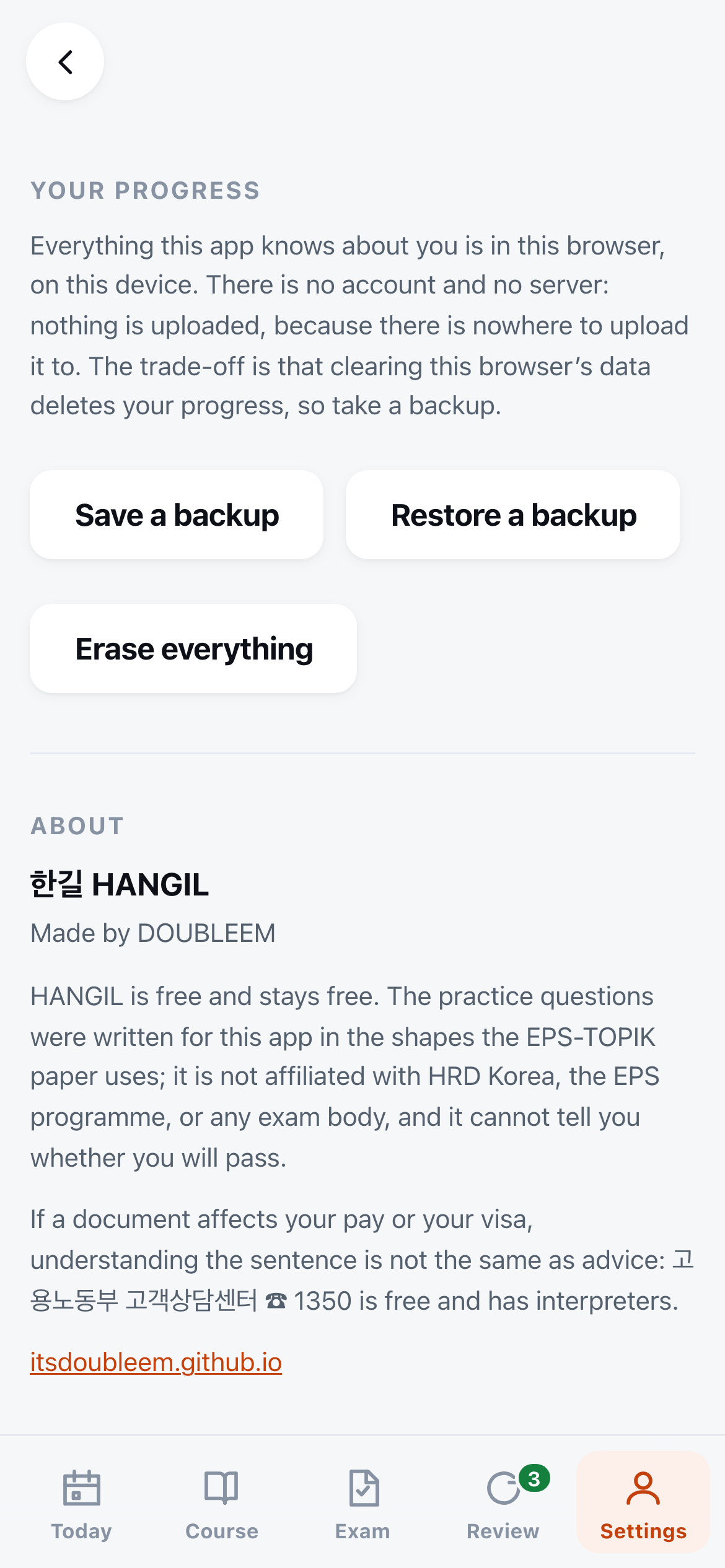
Your progress lives only on your phone. There is no account to get it back from. In Settings, under Your progress, tap Save a backup and keep the file somewhere safe. Restore a backup brings it back on a new phone or a new browser.
In a browser, clearing the browser's data deletes your progress. Take a backup before you change phone or browser.